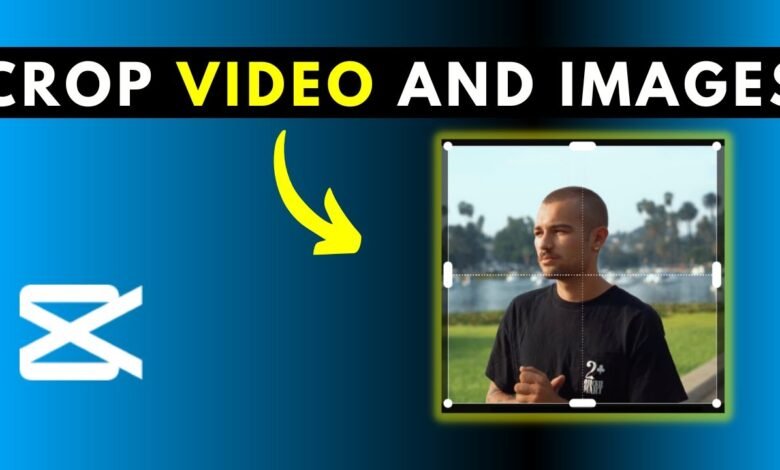
Video quality can make or break your content. Whether you’re creating videos for YouTube, TikTok, Instagram, or business marketing, keeping the viewer’s attention is key. One simple yet powerful way to do this is to crop your videos correctly. The Crop Video tool helps remove distractions, highlight important details, and improve overall composition.
CapCut’s online video cropper makes this process quick, beginner-friendly, and effective. You don’t need professional editing skills or expensive software. With just a few clicks, you can transform ordinary clips into polished, eye-catching content that looks clean and well-focused. In addition, try the CapCut Photo Editor to enhance your content. It will engage your audience and improve the quality of your content.
Why Cropping Matters for Video Quality and Focus
Cropping is more than trimming edges—it’s about guiding the viewer’s eyes. When a frame includes too much background or unnecessary space, the main subject can feel lost. Cropping helps fix that. Here’s how cropping boosts your video quality:
-
Removes distractions: Unwanted objects or empty space can pull attention away from your message.
-
Improves framing: Centering your subject makes your video look intentional and professional.
-
Fits platform requirements: Each social platform prefers different aspect ratios.
-
Enhances storytelling: Focused visuals help your message land faster and clearer.
CapCut’s Crop Video tool gives creators full control over framing without damaging resolution, making it ideal for both beginners and experienced editors.
Who Should Use the CapCut Crop Video Tool?
CapCut Web is designed for everyone. Whether you’re a content creator, student, marketer, or small business owner, cropping videos can instantly improve your results.
This tool is perfect for:
-
Social media creators resizing content for TikTok, Reels, or Shorts
-
YouTubers fixing framing issues
-
Businesses are polishing promotional videos
-
Educators are cleaning up recorded lessons
-
Beginners learning video editing basics
Since CapCut works directly in your browser, there’s no need to download heavy software or worry about system requirements.
How to Create a CapCut Crop Video Tutorial to Boost Video Focus
Step 1: Set Up Your CapCut Account
To begin, open your browser and head to the CapCut official website. Look for the option to get started for free. CapCut allows you to create an account quickly using popular platforms like Google, Facebook, or TikTok. Once logged in, you’ll be taken to the online editing workspace. This cloud-based setup means your projects are easy to access and manage, even if you switch devices later.
Step 2: Upload Your Video and Choose the Right Format
After entering the editor, the first thing you’ll do is prepare your workspace. Select an aspect ratio that matches where your video will be posted, such as vertical for mobile platforms or horizontal for wide screens.
Next, upload your video file. CapCut offers multiple upload options, allowing you to upload clips directly from your computer or import them from cloud storage services such as Google Drive or Dropbox. You can also upload via a QR code for added convenience. Once uploaded, your video will appear on the editing canvas, ready for adjustments.
Step 3: Crop, Adjust, and Export Your Video
Click on the video clip to activate editing controls. You’ll notice a visible border around the video and several tool icons. Select the crop option to adjust the frame.
You can manually resize the crop area or quickly switch to preset aspect ratios as needed. This allows you to focus on the most important part of the video while removing unnecessary elements from the edges. CapCut also offers AI-powered editing features you can use to further enhance your video, including smart adjustments and creative effects. Once you’re satisfied with the framing, export the video to your device or publish it directly to your social media platforms.
Tips to Get Better Results When Cropping Videos
To make the most of CapCut’s crop video feature, keep these practical tips in mind:
-
Keep your subject centered: This improves balance and makes your video easier to watch.
-
Avoid over-cropping: Cutting too much can reduce visual quality or make shots feel cramped.
-
Match platform standards: Vertical videos work best for mobile-first platforms.
-
Preview before exporting: Always review your video to ensure nothing important was cut out.
-
Use consistent framing: Especially important for brand or series content.
These small adjustments can make a big difference in how professional your videos look.
Conclusion
Cropping is one of the easiest ways to boost video quality and sharpen focus, and CapCut makes the process simple and accessible. With these steps—setting up an account, uploading your video, and cropping the frame—you can dramatically improve how your content looks and feels. Whether you’re editing for social media, education, or marketing, mastering the CapCut crop video tool will help your videos stand out, keep viewers engaged, and deliver your message more effectively. Start cropping smarter, and let your visuals speak louder than ever.